STEP 3: Managing and monitoring virtual devices
In WhatsUp Gold virtual devices are managed similar to physical devices; you can add performance monitors, active monitors, and passive monitors. You can set thresholds in the Alert Center and create alerts associated with these thresholds. You can create customized actions and create action policies that invoke these actions. While much of the management and monitoring of virtual devices is the same as physical devices, areas where there are differences include:
- Performance monitor data gathering methods for virtual hosts
- Extended right-click menu options for virtual machines
- Manual addition and classification of virtual hosts and virtual machines
Performance Monitors
You can assign performance monitors to a virtual device using a device role, or manually from the Performance Monitors tab of the Device Properties menu.
The performance monitors for the virtual hosts use a proprietary API to gather statistics. Because SNMP is not used for collecting performance data for virtual hosts, reports on the parameters monitored by these performance monitors do not contain real time or split second graphs.
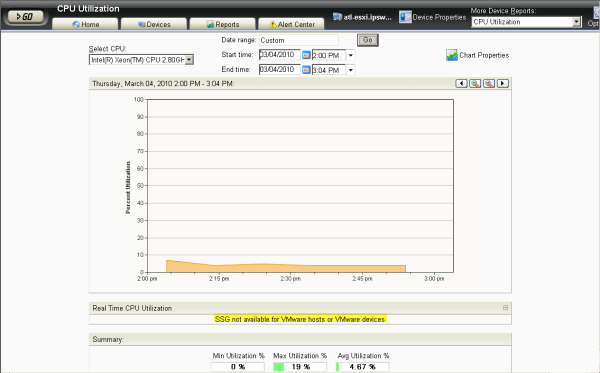
Because the Disk Utilization and Interface Utilization Performance Monitors for virtual machines use SNMP, you must add SNMP credentials to these devices prior to enabling these performance monitors. You can add the SNMP credentials from the Credentials tab of the Device Properties dialog.
Statistics for the CPU Utilization and Memory Utilization performance monitors are collected through the virtual host using the proprietary API, so no additional configuration is required for these monitors.
Actions on virtual machines
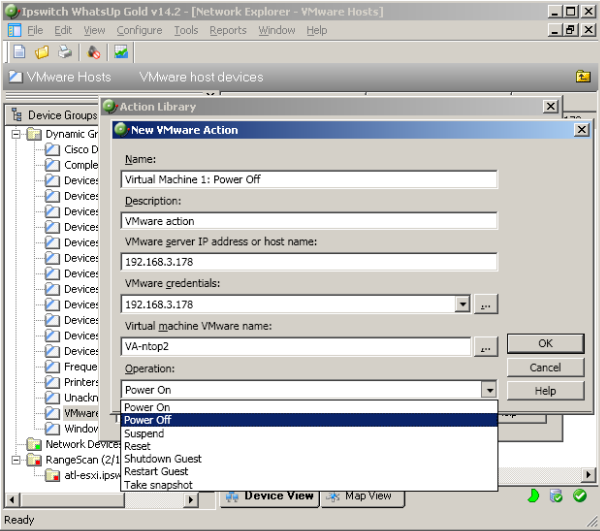
You can create actions to be applied to virtual machines from the New VMware Action dialog (Configure > Action Library > New > VMware). You can power on, power off, suspend, reset, shutdown a guest, restart a guest, or take a snapshot of the virtual machine.
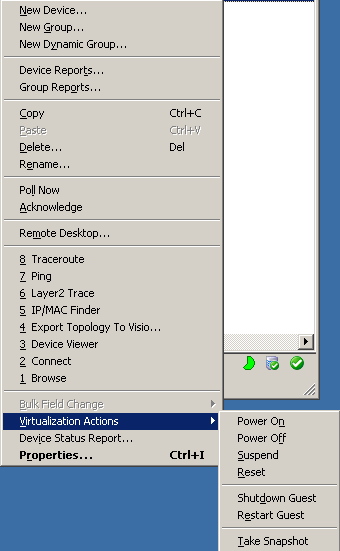
You can immediately run an action on a virtual machine from the Device or Map View by right-clicking on the virtual machine, and then selecting the action you want to perform from the Virtualization Actions menu item.
Manually creating a virtual host or virtual machine association on a device
You can manually designate previously discovered devices as virtual hosts or virtual devices without repeating the discovery process.
To manually designate a device as a virtual host, you must select or create credentials for the virtual host, and for a VMware host select This device is a VMware host on the Virtualization tab of the Devices Properties dialog. 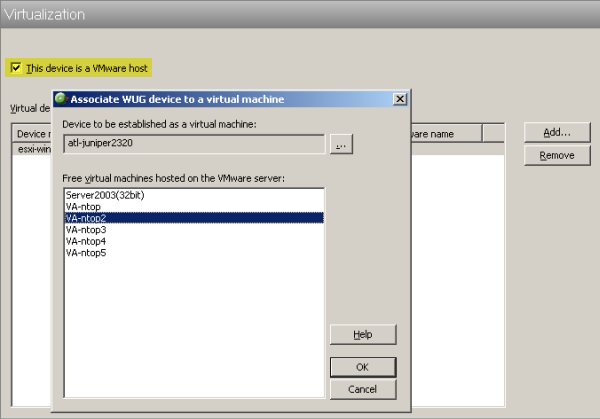
After a device is designated as a virtual host, you can manually associate the host's virtual machines by clicking the Add button on the Virtualization tab of the Device Properties dialog. WhatsUp Gold polls the virtual host to discover all of the virtual machines it is hosting, and displays a list of these machines on the Associate WUG device to a virtual machine dialog.
You can use the Associate WUG device to a virtual machine dialog to create an association between a discovered device and its virtual machine name as reported by the virtual host.
Devices that are manually designated as a virtual host or virtual device respond to actions created for virtual environments, and appear as virtual devices in workspace reports, however they do not appear on the Map View as virtual devices unless they are discovered using the WhatsUp Gold discovery process.