STEP 4: View WhatsVirtual reports
The following reports have been added to WhatsUp Gold to provide information about your virtual environment:
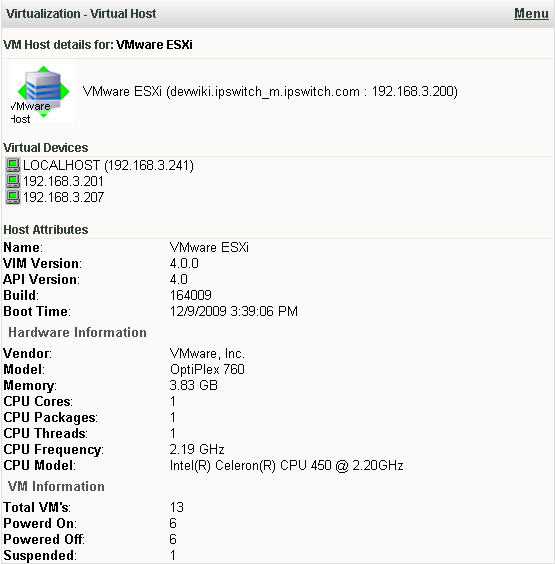
- Virtual Host. This home and device level workspace report provides system attributes for the virtual host, and a list of the virtual devices associated with this host.
- Virtual Host List. This device level workspace report provides system attributes for the virtual host, and a list of the virtual devices associated with this host.
- Virtual Machine Instant CPU Utilization. This home and device level workspace report provides the current CPU utilization for the selected device.
- Virtual Machine Instant Disk Utilization. This home and device level workspace report provides the current Disk utilization for the selected device.
- Virtual Machine Instant Memory Utilization. This home and device level workspace report provides the current Memory utilization for the selected device.
- Virtual Machine Instant Interface Utilization. This home and device level workspace report provides the current Interface utilization for the selected device.
Configuring the Virtual Host and Virtual Host List workspace reports
Configure the Virtual Host, or Virtual Host List workspace report, on the Configure Report dialog (Menu > Configure Report).
On the Configure Report dialog you can use the following controls to configure the report:
- Click the Browse (...) button to select the device you want to use as a data source for the report.
- Select Display virtual devices to display each virtual host selected for the report with a list of the associated virtual machines.
- Select Display host attributes to display the attributes of a given virtual host. These attributes include the total number of virtual machines associated with the virtual host and the number of virtual machines in a given state among other parameters associated with the virtual host.
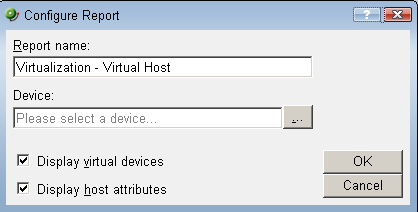
The configuration shown above, with both Display virtual devices and Display host attributes selected, provides the following workspace report.
Configuring the VMware Instant workspace reports
To configure any of the VMware Instant workspace reports, click Menu > Configure Report. Then use the Browse (...) button to select the device you want to use as a data source for the report.