A template is a framework that defines what will appear in a report, but does not itself include any actual MOVEit data.
A template must include at least one data field. It may also include:
The placement of data field columns from left to right
A filter that narrows the report to include data only from specific MOVEit servers, organizations and users
When you first select the Templates tab, all templates display in a list.
Initially only pre-defined stock templates display (stock templates contain data fields and column placement only). All stock templates are visible to any user who has access to the Templates tab. Stock templates cannot be deleted or overwritten.
Users can also create custom templates that contain data fields, column placement and filter selections. Custom templates can be public (visible to any use who has access to the Templates tab) or private (visible to the template creator only); you will see only custom templates for which the privacy setting is public. Unlike stock templates, custom templates can be edited, renamed and deleted. If you make a custom template public, any user who has access to the Templates tab will be able to edit, rename, and delete that template.
Note: All users with access to the Templates tab can view the Transfer and Workflow templates (stock and custom); only users with the role of Administrator or System Administrator can view the User Audit and Security templates.
The templates list includes the following information about each template:
Template Name
Name of the template. Names are case-sensitive.
A clock icon appears next to the template name if that template is part of a schedule (regardless of schedule status).
Type
Each template is one of the following types:
Transfer:Transfer templates capture transfer upload and download data for MOVEit Transfer and MOVEit Automation, including transfers from ad-hoc and mobile.
Workflow: Workflow templates capture workflow, task, and step data for MOVEit Automation only.
User Audit: User Audit templates capture all actions initiated by a user on MOVEit Transfer and Progress MOVEit Analytics, which can be used to demonstrate regulatory compliance. User Audit templates show who accessed the system, what they did, and when. User Audit templates do not include system actions, only actions initiated by a user. Note: MOVEit Automation file operations are not captured in User Audit reports because tasks are not user-initiated actions.
Security: Security templates capture failed login activity and user/IP lockout activity on MOVEit Transfer and Progress MOVEit Analytics to help you locate suspicious activity (defined as an excessive number of failed access attempts).
To display only one type of template at a time, select a type from the drop-down menu at the top of the table.
Description
A brief description of the template.
Updated by
The username of the last person to make changes to the template. Stock templates show "system" here.
Updated
The date and time when someone last edited the template.
Details
Displays the following information:
ID: A numeric identifier assigned to each template.
Privacy setting:
Public: Viewable by all users.
Private: Viewable only by the user who created the template.
Read-only setting:
True: Template cannot be modified. All stock template have a read-only setting of True.
False: Template can be modified. All custom templates have a read-only setting of False.
Creation on: The date/time when the template was created.
Created by: The user who created the template. Stock templates show "system" here.
Click a column header to sort templates in ascending or descending order.
Use the Search box to locate a specific template (the asterisk * wildcard is accepted in searches).
To view only certain template types, select that type from the drop down menu:
Click any existing template name to open it in the Template Editor and optionally make changes to its fields, field placement and filter. Only one template displays in the Template Editor at a time.
Select a template row and:
Click Schedule Report to create a schedule that will run the template and deliver it automatically on a one-time or recurring basis (permission to schedule depends on user's role)
Click Edit Properties to change the template's name, description and public setting (custom templates only)
When viewing a template in the Template Editor, you can:
Add or remove fields, change field placement, and edit the filter to change which MOVEit sources are included in the report, then optionally save your template changes. You can also add data visualizations (line chart, bar chart, donut chart, pie chart). If you modify a stock template and want to save your modifications, you must save the template with a new name. Stock templates cannot be changed or deleted.
Run the template: Select a time range then click Run at any time to populate the template with actual data from one or more MOVEit system(s) (depending on the Filter settings). You can then save the resulting report to the Library or download it as a PDF or CSV file. You cannot save the time range with the template; the time range selector affects only templates run within the Template Editor.
Tips: Modify any template's fields and filters and then run the template without having to save the template. Make template modifications and run the template multiple times without saving the underlying template.


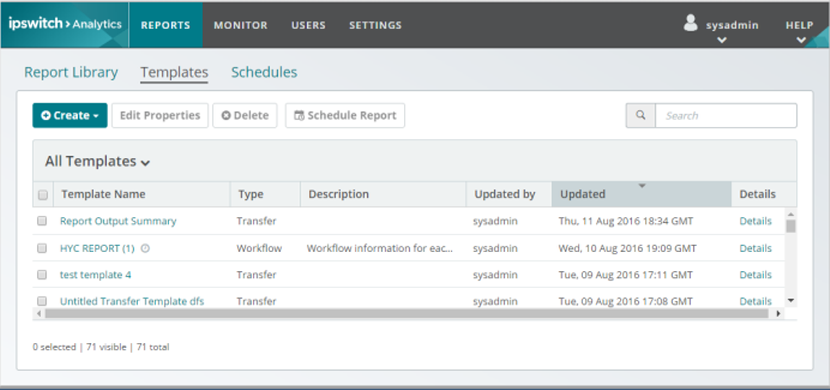
 A clock icon appears next to the template name if that template is part of a schedule (regardless of schedule status).