|
|
|
|
|
You might receive an email notification when you (or a mailbox that is shared with you) receive a new package.
Click the link provided in the email to open the MOVEit Transfer sign on page. Sign on to MOVEit with the username and password given to you in the email to view the package and download any attached files.
If enabled, you can reply to a package and send additional attachments.
You can also view all packages in your Inbox by clicking the HOME link in the left navigation menu.
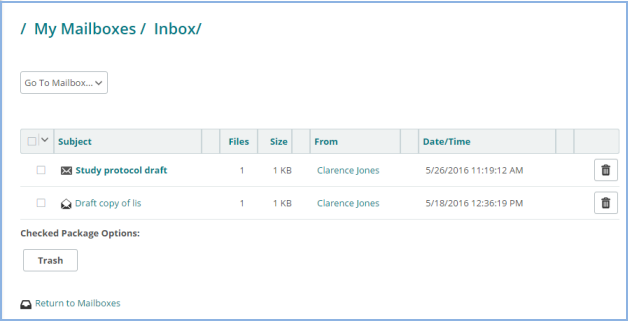
New packages display in bold next to a new package icon  .
.
Click any package to view the package.
Click  to move a package to your Trash mailbox.
Click Return to Mailboxes to view all of your mailboxes.
You can also use the Go to Mailbox selector to go directly to a different mailbox, such as your Sent or Trash mailboxes:
The Mailbox view shows an overview of all of your mailboxes, including your Inbox, Sent, and Trash mailboxes and the number of packages each mailbox contains. You might also have Drafts and Templates mailboxes, depending on your organization's settings.
Mailboxes that contain new packages are shown in bold.
Click any mailbox to view its packages.
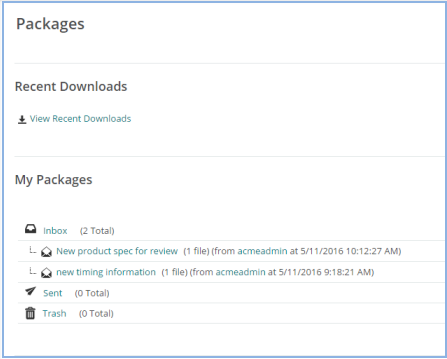
You can recall packages in the Sent mailbox.
If you have access to the shared mailbox of another MOVEit user, you'll see new packages in that shared mailbox also.
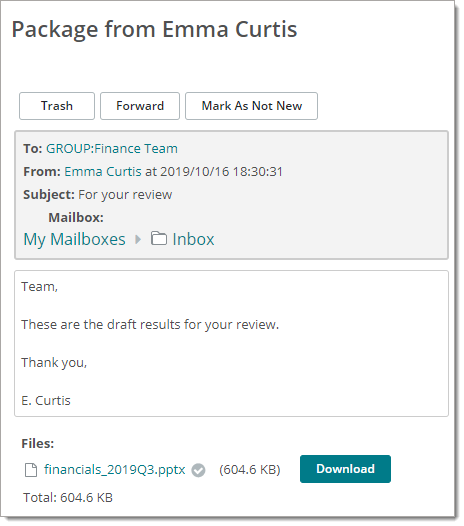
The package header contains information such as the Recipient(s), the Sender, the Subject, and the current Mailbox. For packages that you sent, the header contains the package's Read Status, and a Recall option.
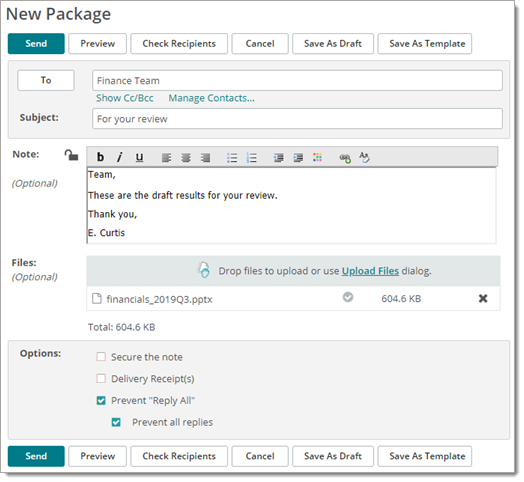
Package Sent
|
Package Received
|
Below that, the note (message body) is shown, followed by a list of file attachments, if there are any.
Buttons and links display actions that can be performed on the current package. The actions available on your package depend on how your organization is set up.
A Download button is provided on the package page, and the file details page.
The JavaScript Wizard does not check download integrity automatically. When you download a file, a Downloads window opens. After the file finishes downloading, optionally click Check. Locate and select the downloaded file. A green checkmark indicates that the integrity check succeeded. A red X indicates a failed integrity check.
You can also perform integrity checks on Recent Downloads from your Home page, if enabled.
Click an attachment name to view information about the file. File data might include:
If Content Scanning is enabled, a note might identify whether the file was scanned for viruses and/or for data loss prevention (DLP). With DLP, file names and the Notes field (associated with an upload) are also scanned for data policy violations.