|
|
|
|
|
The page in the WebUI that displays after you sign-on depends on what initiated your sign-on. When you sign-on using the link emailed in a package or shared file notification, the WebUI displays the information shared with you, either a shared folder (file notifications) or your InBox (package notification).
Note: For information on how to view and download files from a Shared Folder, see Download Files.
|
Packages are secure email messages (and more) that:
|
|
Shared Folders are secure content containers that can trigger notifications and:
|
When another MOVEit Transfer user sends you a package directly, you begin with package view after sign-on.
If the organization's administrator enabled it, you can also:
 Files are sent as package attachments are stored and encrypted at rest and in transit at the MOVEit Transfer server.
View a Received Package (download as zip file shown)
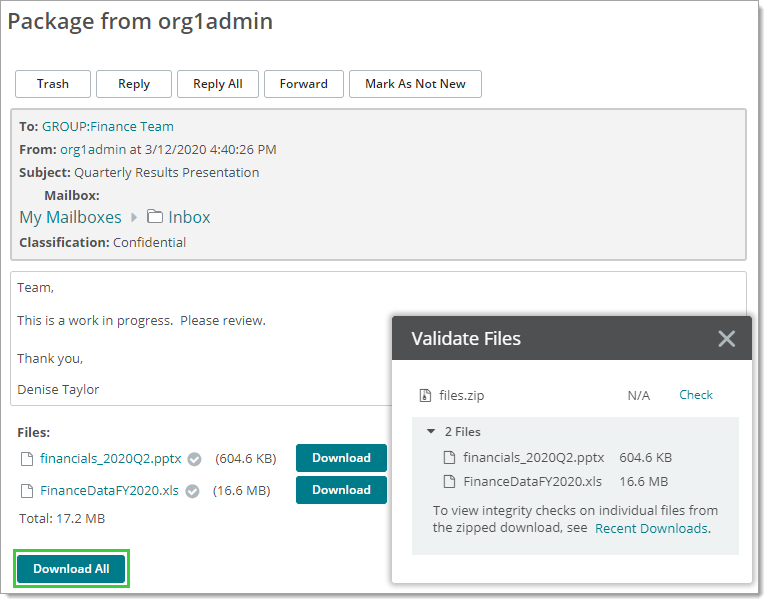
The following table describes important package fields and features.
Feature |
Description |
Classification |
A field that indicates the business priority, data security, or sensitivity for the message. The organization where the package originated from determines these information markings. |
View Package History ( |
View For more information, see Package History. |
View Print Friendly ( |
View a preview for printing. |
Return to Mailbox ( |
Return to mailboxes view, including Drafts, Sent, andTrash. |
Download All/Download |
Download individual files or download them all as a zipped file. |
Check |
Optional file integrity check. |
When you first receive a package notification, your InBox displays when you first sign-on to MOVEit Transfer,
Inbox View (features and controls shown in the table that follows)
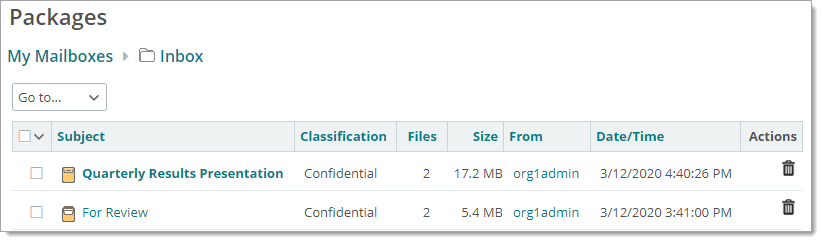
Find InBox features worth noting described in the following table.
Feature |
Description |
|
Select a different mailbox. |
|
A closed envelope icon and bold text in the subject line indicate an unviewed package. An open envelope indicates a previously viewed package. |
Classification |
A field that indicates the business priority or sensitivity for the message. The organization determines these information markings. |
|
Open mailboxes view, including Drafts, Sent, andTrash. |
|
Click to open a page where you create a new package and send it. For more information, see Send Packages. |
Note: Not all checked package options may be available.
For more information, see Work with Packages.
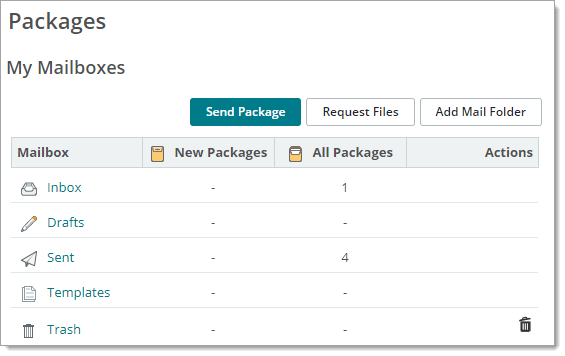
The Mailbox view shows an overview of all of your mailboxes, including your Inbox, Sent, and Trash mailboxes and the number of packages each mailbox contains. You might also have Drafts and Templates mailboxes, depending on your organization's settings.
Mailboxes that contain new packages are shown in bold. Typical fields and features of My Mailboxes view include:
Typical Fields and Features of Mailbox View
The top of every screen contains organizational branding and information about your account. Depending on how your organization is configured, the top banner contains the following items:


 )
) )
) )
) (Selector)
 /
/  (Closed or open envelope)